1. The keys and the one gesture rule
Pop Snip is played with keys, and every key works the same way. Learn one rule here and you know how to use all 58.
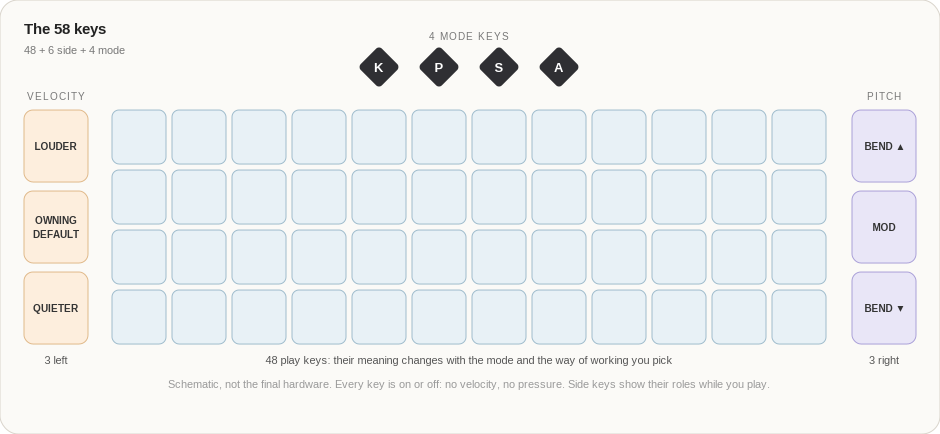
| Keys | How many | What they do |
|---|---|---|
| Play keys | 48, in four rows of twelve | Whatever the current mode and way of working gives them: sniplets on the Sniplane, notes in the tracker, steps in the step grid |
| Side keys | 3 on the left, 3 on the right | While you play: velocity on the left, pitch on the right. Elsewhere: moving around and choosing (1.8) |
| Mode keys | 4: K, P, S, A | Switch what the play keys are for. They have a section of their own (section 3) |
On an iPad, the virtual Pop Snipler draws the same 58 keys on the screen. On a computer, the keyboard and mouse stand in for them (section 4).
Every key is on or off
No key on a Pop Snipler measures how hard you press it. A key is either down or up. That's on purpose: every hit counts, however you hit it, and the instrument behaves the same on glass, on a touch screen and on a laptop keyboard.
How loud a note plays comes from the side keys instead (1.3 to 1.5).
On the Pop Snipler the keys are drawn on the screen, so a key's label and state show on the key itself, as on an iPad.
The one rule: a tap steps, a hold lasts as long as you hold
Tap a key (let go quickly) and it does its job once, and the change stays. Hold a key and its job lasts only while you hold it. Let go and it ends.
A press counts as a tap if you let go within the hold time, about 300 ms. You can change the hold time (1.7).
Here is the rule applied to every key that plays:
| Key | Tap | Hold |
|---|---|---|
| A sniplet's key | Starts it on the next beat (1.1) | Gets it ready; it starts the moment you let go (1.2) |
| Louder | One step louder, and it stays louder (1.3) | Louder only while held: an accent |
| Quieter | One step quieter, and it stays quieter (1.3) | Quieter only while held |
| Owning default | Back to the normal level (1.4) | The same |
| Bend up / down | — | The pitch bends while held and glides back when you let go (1.5) |
| Mod | — | Modulation while held, unless you set it to switch on and off (1.6) |
1.1 Start a sniplet on the beat#
Coming in 0.4.2
Start a sniplet exactly in time, even if your hand is a little early.
| On | Do this |
|---|---|
| Pop Snipler | Tap the sniplet's key |
| iPad / touch | Tap its block on the Sniplane |
| Computer | Click its block, or press the key shown on it |
What happens: the sniplet waits for the next beat its breakbeat counts in, then starts right on it.
Owned by: where "the beat" falls comes from the sniplet's owning breakbeat: the nearest of the sniplet, its lane and the song that sets a quantise grid (section 5).
Good to know: with quantise switched off, a tap starts the sniplet at once.
See also: 1.2 · Quantise (section 8)
1.2 Start a sniplet by hand#
Coming in 0.4.2
Start a sniplet at the exact moment you choose, off the grid if you want it there.
| On | Do this |
|---|---|
| Pop Snipler | Press and hold the sniplet's key, then let go at the moment it should start |
| iPad / touch | Touch and hold its block, then lift your finger |
| Computer | Hold the key shown on its block, then let go |
What happens: holding the key gets the sniplet ready. It starts the instant you let go, and quantise is ignored.
Good to know:
- The sniplet keeps its own timing from where you started it. It doesn't snap back to the grid later: an off-beat entry stays off-beat on purpose.
- Pop Snip times the start from the moment your finger left the key, not from when the message arrived. What you play is what you get, even on a slow connection.
- Holding a key for a long time has no extra meaning. However long you hold, letting go starts the sniplet.
See also: 1.1 · 1.7
1.3 Play louder or quieter#
Coming in 0.4.2
Change how hard the next notes are played, for a whole passage or for a single accent.
| On | Do this |
|---|---|
| Pop Snipler | Tap the top-left key (louder) or the bottom-left key (quieter). Hold either one for an accent |
| iPad | The same keys, at the left of the virtual Pop Snipler |
| Computer | The keys set in the controls map (section 4) [check] |
What happens:
- A tap moves the level one step: an eighth of the full range, 16 on MIDI's 0–127 scale. It stays there until you change it again or go back to the default (1.4).
- A hold changes the level only while you hold. Let go and it's back where it was.
Good to know: the side keys change the notes you play next, not notes already written.
1.4 Back to the normal level#
Coming in 0.4.2
Return to the level the music is meant to be played at.
| On | Do this |
|---|---|
| Pop Snipler / iPad | Tap the middle-left key |
Owned by: the normal level is set by the nearest owner that sets one: the sniplet, its lane, the song, or the instrument (section 5). So "normal" can be softer for a ghost-note sniplet and harder for a lead.
1.5 Bend the pitch#
Coming in 0.4.2
Bend the notes you're playing up or down, the way a guitarist pushes a string.
| On | Do this |
|---|---|
| Pop Snipler / iPad | Hold the top-right key (up) or the bottom-right key (down) |
What happens: the pitch bends while you hold and glides back when you let go.
Owned by: the instrument's bend range, ±2 semitones unless the instrument says otherwise.
1.6 Modulation#
Coming in 0.4.2
Bring in the instrument's modulation: vibrato, a filter sweep, whatever the instrument maps it to.
| On | Do this |
|---|---|
| Pop Snipler / iPad | Hold the middle-right key |
What happens: modulation is on while you hold the key.
Owned by: a setting can make the key switch modulation on and off with a tap instead. Like other settings it can be set for the sniplet, the lane or the song (section 5).
1.7 The hold time#
Coming in 0.4.2
Choose how long a press has to last before it counts as a hold.
Where: Settings ▸ Keys ▸ Hold time (section 45) [check]
Default: about 300 ms. Shorten it if your holds feel slow to arm. Lengthen it if your taps are being read as holds.
Good to know: it applies to every key, so the one rule stays one rule.