6. Files: everything you keep
Files is one list of every sound, song and soundfont you keep: the ones on this device and the ones in your locker, side by side. You bring files in, hear them, sort them into folders and Stacks, cut sounds into samples and build soundfonts from them, and move things between this device and your locker. Lob Ryefield, a hermit crab who says he is a lobster, keeps you company at the bottom of the screen and says what just happened.
6.1 Open Files#
Coming in 0.4.2
See everything you keep in one list, wherever it is.
| On | Do this |
|---|---|
| iPad / touch | Tap ⇆ in the top bar, then Files |
| Computer | Click ⇆ in the top bar, then Files |
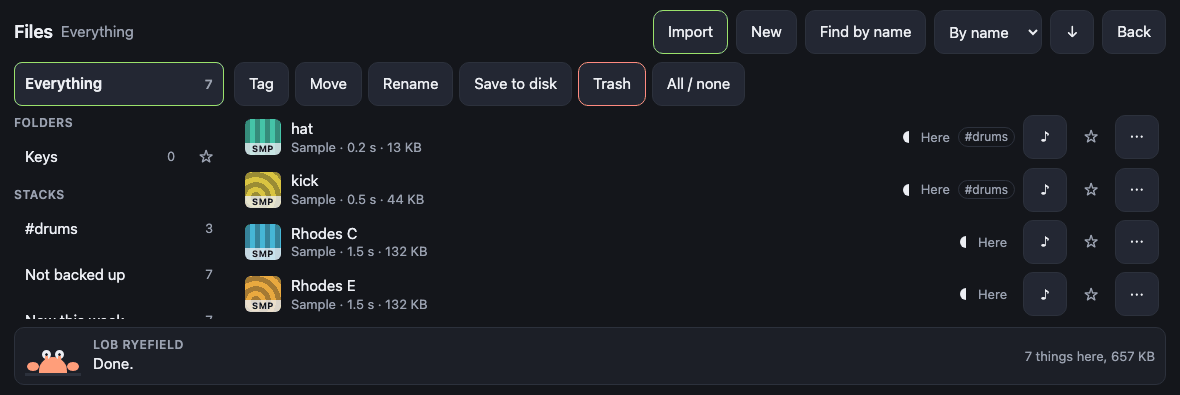
What happens: the rail on the left lists Everything, your folders, your Stacks and the Trash, each with how many things are in it. The list shows what is in the place you chose, each thing in its sleeve: a colour and pattern made from its name and kind, so a thing looks the same every time and on every device. Details on a row opens a drawer with its kind, size, length, key, tempo, tags and where it is.
Good to know:
- The list shows 500 things at a time ("and 7 more. Search to narrow it down.").
- Where a thing is shows as a word on its row, never as a colour alone: Here, In your locker, Here and in your locker, On another device, Moved out, In the trash.
- Lob says one true line at a time: what was just kept, moved or trashed, or that this browser may clear your files when it runs low on room ("Keep copies of what matters").
- Files keeps what you bring in on this device, in this browser's own storage. Nothing in Files is shared with another person.
See also: 6.2 · 6.9 · section 40
6.2 Bring files in#
Coming in 0.4.2
Keep your own sounds, songs and soundfonts in Files, ready to play, chop and build with.
| On | Do this |
|---|---|
| iPad / touch | Tap Import and pick files |
| Computer | Click Import and pick files, or drop files on the list |
What happens: each file is looked at, kept, and listed under its kind: a song or sample (audio), MIDI, a station song (.pxs), a module (.it, .xm, .s3m, .mod), a soundfont (.sf2, .sf3) or a pack. Lob counts what was kept ("Kept 4."), what was here already, and what wasn't music.
Good to know:
- A file is kept once. The same bytes imported again are not kept twice; the newer name wins.
- One file is at most 512 MB, the most a locker takes in one file. A station song is at most 32 MB.
- Another save of a song you have is held back, not taken over: Lob asks whether to keep it too (the save you had goes to the trash as an earlier save) or leave it.
- A file that isn't music is left where it was, and Lob says how many.
See also: 6.3 · 6.8
6.3 Hear a thing#
Coming in 0.4.2
Hear a sound before you use it, for as long as you hold it.
| On | Do this |
|---|---|
| iPad / touch | Press and hold the ear on its row; let go to stop |
| Computer | Press and hold the ear on its row, or hold Enter or Space on it |
What happens: it plays while you hold, through the station's own sound, and stops the moment you let go. While a song plays, it starts on the song's next beat, so it lands in time. Let go before that beat and it isn't heard. With the song stopped, it starts at once.
Good to know:
- Latch keeps listening on as you move the focus down the list, so you can run through a folder of drum hits.
- Songs and samples a browser can play are heard here, up to 48 MB. A station song, a module, MIDI and a soundfont are heard in their own views.
See also: 6.14 · 6.16
6.4 Choose, find and sort#
Coming in 0.4.2
Pick out the things you want to act on, and find the one you're after.
| On | Do this |
|---|---|
| iPad / touch | Tap a row to choose it, tap again to let it go. All chooses everything shown; again chooses none |
| Computer | Click a row to choose just it; Ctrl-click (⌘-click on a Mac) adds or takes one away; Shift-click chooses a run. All chooses everything shown |
What happens: what you chose is counted at the bottom ("3 chosen, 2.1 MB"). Every action takes what is chosen; with nothing chosen it takes the thing in focus.
Good to know:
- Find by name searches as you type, in the place you're in.
- Sort by name, newest, largest, key, tempo or kind, and flip the order. The sort is remembered.
- With a locker, the chips at the top show All, only what is Here, only what is in your Locker, or what is Not backed up.
See also: 6.5
6.5 Folders and Stacks#
Coming in 0.4.2
Keep things in folders you make, and let Stacks gather them for you.
| On | Do this |
|---|---|
| iPad / touch | New → Folder makes one where you are. Choose things, then Move and pick a folder |
| Computer | The same, with clicks |
What happens: a folder holds things, and folders inside it. A Stack is a gathering that is never a place: a thing can be in many Stacks at once.
Good to know:
- Tag Stacks gather everything with a tag (#drums).
- Saved Stacks: search, then New → Stack from this search, and the search is kept on the rail.
- Stacks that gather themselves appear on the rail when they hold something: Not backed up, Only in the locker, New this week, Untagged, Big, a key ("In A minor") or a tempo ("120–127 BPM") that four or more share, and a sound's chops ("Chops of Tuesday jam"). They come out the same on every device.
- Two versions: when a song was changed on two of your devices before either saw the other's change, both saves are kept. This Stack shows each pair together, the newest first; the one kept from the clash says "the other version, kept". Keep the one you want and trash the other. Lob says how many songs have two.
See also: 6.6
6.6 Rename and tag#
Coming in 0.4.2
Give a thing a name you'll find again, and tags to gather it by.
| On | Do this |
|---|---|
| iPad / touch | Rename or Tag, type, then Keep |
| Computer | The same; Enter keeps, Escape drops |
What happens: the new name or tags show at once. For a thing in your locker as well, the locker gets them too.
Good to know:
- Rename takes one thing. With nothing chosen inside a folder, it renames the folder.
- Tags are lowercase. Put - before a tag to take it off ("-loop").
6.7 Trash, restore and empty#
Coming in 0.4.2
Throw things away without losing them by accident.
| On | Do this |
|---|---|
| iPad / touch | Trash, then Trash again within 5 seconds |
| Computer | The same |
What happens: what you chose goes to the trash for 14 days, with the days left on each row. Restore brings it back. Empty removes what is in the trash for good, after a dialog that starts on Cancel.
Good to know:
- The first press only arms it: the button shows how many, and any other press disarms it.
- A thing here and in your locker asks where from: This device, Your locker or Everywhere.
- Your locker checks first. When something else uses the same file (a project, a sniplet, a playlist), nothing is moved and the dialog names them; Trash it anyway goes ahead.
- Your locker's trash can only be emptied on your locker's own page. Files empties this device's trash and offers Open your locker's trash, which opens that page. The first time, that page may ask you to pair this browser or type your recovery card, and a browser added that way waits a day or three before it can empty the trash. Nothing is lost meanwhile: left alone, the locker's trash empties itself after 14 days.
6.8 Save to disk#
Coming in 0.4.2
Put a copy of a thing in your browser's downloads.
| On | Do this |
|---|---|
| iPad / touch | Choose it, then Save to disk |
| Computer | The same |
What happens: a copy of each thing goes to your downloads, named with its format ("kick.wav").
Good to know:
- What you made or imported here is yours: it saves to disk as it is.
- A working copy (a thing brought down from your locker, 6.11) saves to disk as a copy out of your locker: your locker's own box opens, takes the copy and saves it as a zip, and it counts against the copy allowance (the wall says what is left, 6.19). Over the allowance, Lob says so, with what a copy may still take. Once the file has left your locker, the copy here is an ordinary thing and saves as it is.
- Nothing saves to disk from the trash.
See also: 6.11 · section 40
6.9 Your locker in the list#
Coming in 0.4.2
See what is in your locker beside what is here, and what isn't backed up.
| On | Do this |
|---|---|
| iPad / touch | Open Files on a browser that has your locker |
| Computer | The same |
What happens: the list joins this device's things with your locker's. A thing in both places is one row ("Here and in your locker"). Lob says "Your locker and this device, in one list."
Good to know:
- When your locker can't be reached, Files shows the last list it saw of it and says so, or this device's things alone. Nothing in the locker is changed from a list that isn't its whole, fresh one.
- Without your locker's keys on this browser, its things show without names and can't be changed; Lob says how to read them (your recovery card, on the Pompas page).
- On another device marks a thing whose file is on another of your devices and not in your locker (6.13).
See also: 6.10 to 6.13 · 6.19 · section 40
6.10 Up: send things to your locker#
Coming in 0.4.2
Keep a copy of what is only on this device safe in your locker.
| On | Do this |
|---|---|
| iPad / touch | Choose things that are only here, then Up |
| Computer | The same |
What happens: each goes up to your locker with its name, tags, folder and what it was chopped from. Lob says "Going up…", then "It went up to your locker." The row turns to "Here and in your locker" once your locker lists it.
Good to know:
- A station song goes up from the station's own save, not from Files.
- One file is at most 512 MB. Going up uses an access pass and needs room in your locker.
- If your locker made a file's cover art smaller to fit, the original stays here as well, and Lob says so.
- No locker yet? Press Up anyway. What you chose waits ("goes up when your locker opens"), even if you close the page, and goes up by itself as soon as your locker is made (6.20). One you trash meanwhile stays here.
6.11 Down: bring things here from your locker#
Coming in 0.4.2
Work with a thing that is only in your locker: hear it, chop it, build with it.
| On | Do this |
|---|---|
| iPad / touch | Choose things that are only in your locker, then Down |
| Computer | The same |
What happens: each comes here as a working copy with its name, tags and folder. Lob says "Coming down…", then "It came down from your locker." The row turns to "Here and in your locker", marked "a working copy".
Good to know:
- The first Down of a visit uses one access pass. With none ready, Files says so; try again in a moment.
- It is a read: your locker's daily reads apply. When they are used up, the rest wait ("comes down when reads come back") and come down by themselves after the reads reset; Lob says when, in UTC.
- Your locker can't be reached (offline, or Files shows its last list)? Press Down anyway: what you chose waits and comes down once your locker can be reached. Up waits the same way.
- Past 200 MB a file can't be brought down here.
- A file with a copyright notice pending stays in your locker until that's settled; Files doesn't bring it down meanwhile.
- A station song comes down from the station, not from Files.
See also: 6.8 · 6.12
6.12 Free up: make room on this device#
Coming in 0.4.2
Let go of this device's copy of a thing your locker keeps, to make room here.
| On | Do this |
|---|---|
| iPad / touch | Choose things that are here and in your locker, then Free up, then Free up in the dialog |
| Computer | The same |
What happens: Files reads your locker's list again, now, and frees this device's copy only when your locker holds the same file, live. The row turns to "In your locker". Down brings it back.
Good to know:
- The dialog starts on Cancel, and names anything only this device's copy has (some tags, its folder, what it was chopped from), which would go with it.
- A copy stays when your locker has the file in its trash, doesn't list it, can't be read whole, or has a copyright notice pending on it. Lob says which.
- Not near freezing: while your locker is frozen, has two weeks of runway or less, or its state can't be read, Free up keeps this device's copy (6.19).
- A sound open in the chop view, the font builder, the font view or the keyfork stays until you leave it.
See also: 6.11
6.13 Ask for it: a thing on your other device#
Coming in 0.4.2
Ask your other device to send up a thing that is only there.
| On | Do this |
|---|---|
| iPad / touch | Choose a thing marked On another device, then Ask for it. Take it back clears the ask |
| Computer | The same |
What happens: the row is marked "asked for". The next time Files is open on the device that has it, Lob there says "Another of your devices asked for … Send it up?", and Send them up sends it to your locker (6.10). Not now clears the ask.
Good to know:
- Nothing is sent until someone presses Send them up on the device that has it.
- An ask stands for 14 days. It names no device.
6.14 Chop a sound into samples#
Coming in 0.4.2
Cut a loop, a phrase or a recording into samples you can play and build with.
| On | Do this |
|---|---|
| iPad / touch | Choose one sound here, then New → Chop this |
| Computer | The same |
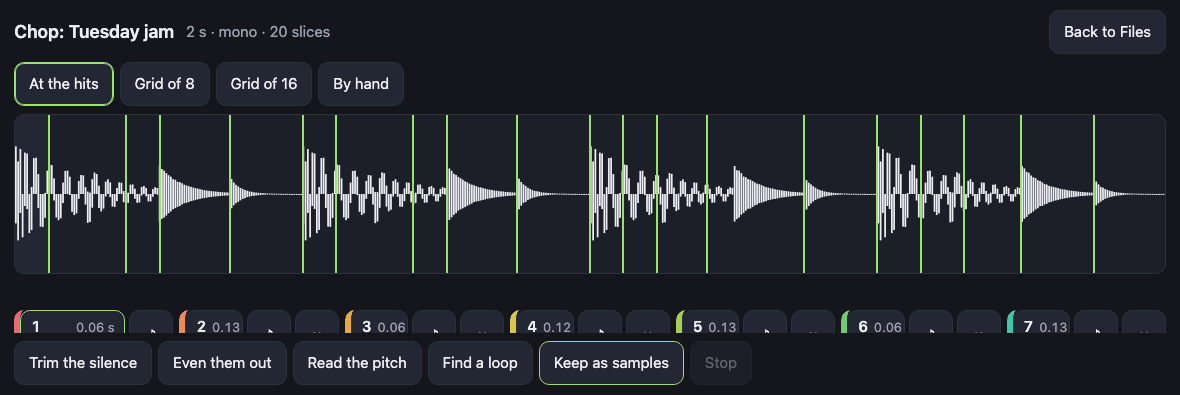
What happens: the chop view shows the sound's wave. Trim the silence, then slice it At the hits, on a Grid of 8 or Grid of 16, or By hand (press on the wave to drop a mark). Hold a slice to hear it. Keep as samples keeps each slice as a WAV in a folder "<name> chops" beside the sound, named "<name> 01" and on, tagged chop. The sound itself is never changed.
Good to know:
- Even them out keeps every slice at the same loudness (−14 dBFS).
- Read the pitch names the note a sound plays; Find a loop finds where a sustained sound can loop.
- At most 128 slices, from at most 15 minutes of sound. The slices keep the sound's own rate.
- Files gathers a sound's slices in a "Chops of <name>" Stack.
- Everything happens on this device. The sound isn't sent anywhere.
See also: 6.15
6.15 Build a soundfont#
Coming in 0.4.2
Turn your samples into an instrument you can play anywhere a soundfont plays.
| On | Do this |
|---|---|
| iPad / touch | Choose 1 to 128 sounds, then New → Soundfont from these. Name it, then Build the soundfont |
| Computer | The same |
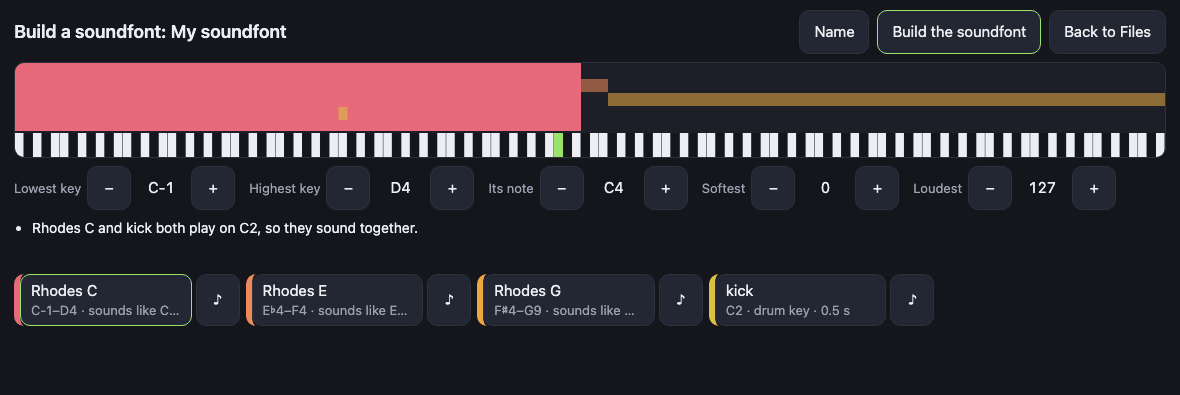
What happens: Files listens to each sound and lays it on the keyboard by its pitch, each zone reaching halfway to its neighbours; a sound with no clear pitch goes to a drum row from C2, a key each. You can move a zone's keys, its note and its loudness range, and hold a sound to hear it. Build the soundfont writes an .sf2 file, kept beside the first sound and tagged font. Open it shows it in the font view (6.16).
Good to know:
- Before you build, it says where the keyboard plays nothing between zones and where zones play together.
- A soundfont's name is at most 20 characters; the builder says what the file will hold.
- One preset, no loops yet. It is built on this device: your sounds aren't sent anywhere.
6.16 Look inside a soundfont#
Coming in 0.4.2
See how a soundfont is put together, exactly as the station will play it.
| On | Do this |
|---|---|
| iPad / touch | A soundfont's details, then Open |
| Computer | The same |
What happens: the font view lists its presets by bank and program. Choose one and you see its zones, each with its keys, loudness range and note, on a map of the keyboard with loudness upward. Choose a zone to see its sample's wave, note, rate and loop. Hold Hear to hear the sample as it was recorded.
Good to know:
- What you see comes from the station's own soundfont reader, so it is what plays.
- A very large soundfont shows only part of its presets, and says so. One over 256 MB shows every preset and zone, but no waves and no sound.
See also: 6.17
6.17 Play a soundfont's preset#
Coming in 0.4.2
Play the preset you're looking at, before you use it in a song.
| On | Do this |
|---|---|
| iPad / touch | In the font view, press the keys on the screen's keyboard |
| Computer | Click the keys on the screen's keyboard |
What happens: each key plays the chosen preset's note live, on the station's own engine, for as long as you hold it, and the song dips while you play. Two octaves are shown; move them up or down.
Good to know: the first key of a preset takes a moment to get ready. After that every key plays at once, never waiting for the song's beat. A preset that holds more sound than the keys can carry (about three minutes of it) plays what fits, and the view says how much was left out.
6.18 Files on the Pop Snipler's keys#
Coming in 0.4.2
Use Files with the 48 keys and the knobs, without the screen.
| On | Do this |
|---|---|
| Pop Snipler | In S mode, hold S and press P: Files is S's alt mode F. Or hold your mode key, press key 45 for ⇆, and pick Files under Alt modes |
| Computer | The keyboard is the 48 keys: in S mode hold F3 (or Option/Alt+3) and press F2; or pick Files on the ⇆ sheet |
What happens: rows 1 to 3 are the things on the page, in their sleeve colours: press one to choose it (again to unchoose), hold it to hear it until you let go. Row 4 is Up, Down, Tag, Move, New, Rename, To disk, All, Trash (press it twice; in the trash it is Restore) and Back; the double space key still plays and stops. Knob 1 moves the focus (push: the details), knob 2 walks the folders and Stacks (push: go in), knob 3 changes the sort (push: flip it) and knob 4 sets where listening starts (push: keep listening). The left top side key goes out a folder, the right top goes in, and the bottom pair turn the pages. While you type a name, a tag or a search, the keys type K mode's letters: the left middle side key erases, key 36 or the right middle side key keeps, and the left top side key cancels. Back (or a tap of S) leaves Files for S's own view.
Good to know:
- On a computer the arrows move the focus (← out, → in), Option/Alt+↑↓ walk the folders, Enter keeps or takes a menu's choice, Backspace cancels, Option/Alt+U is Up and Option/Alt+D Down, and Option/Alt+B goes back.
- Emptying the trash is never on a key: it is the screen's own button and dialog.
- The chop view and the font builder have their keys too (section 46).
See also: section 3 · section 46
6.19 The wall: your locker at a glance#
Coming in 0.4.2
See how full your locker is, how long its credits last, and what is in it, without leaving Files.
| On | Do this |
|---|---|
| iPad / touch | Open Files on a browser that has your locker: the wall is at the bottom, beside Lob |
| Computer | The same |
What happens: the wall is your locker's slots in one strip, each thing in its sleeve colour, the trash hatched. Its line says how many slots, about how many days of runway, and how many reads you've used today ("12 slots · about 212 days of runway · 3 of 500 reads today"). Lob's shell grows with your locker.
Good to know:
- A slot is 10 MB. Before Up, beside what you chose, Files says how many slots it takes and the runway after ("Up: 1 slot more, about 212 days becomes 176").
- When your locker is frozen (its credits ran out), Lob says how many credits unfreeze it and until when it is kept, and tucks into its shell. Up and Down wait until it is funded; the list, the trash and renames still work. Add credits is right there (6.21).
- The day's reads, by count and by size ("up to 64 MB of 1 GB read"). When Down runs out of reads, Lob says when they come back, in UTC.
- What a copy may still take, rounded down: "copies: up to 1.7 GB, 188 files". A copy taken out of your locker counts against it over 30 days; when none is left, the wall says so.
- Near freezing, with two weeks of runway or less, Free up keeps this device's copies (6.12).
- A device's own locker has no meter: the wall says "nothing to pay for", and Free up works there too.
- When your locker can't be reached, Lob sits on a flight case and the wall waits.
See also: 6.9 · 6.10 · 6.12
6.20 Make my locker#
Coming in 0.4.2
Give your files a home away from this device: a locker of your own.
| On | Do this |
|---|---|
| iPad / touch | In Files on a browser with no locker, tap Make my locker, then follow the box that opens |
| Computer | The same, with a click |
What happens: the box that opens shows your recovery card. Save it: it is the only way back into your locker, and the keys that seal your files' names come from it. Then your locker is made within the hour, while Pompas is open. Lob says it is on its way, and when it is made.
Good to know:
- Only your own press makes a locker: it uses one of your account's locker tickets (one every 90 days).
- Already have a locker on another device? Pair this browser with it from the Pompas page instead.
See also: 6.9 · section 40
6.21 Add credits#
Coming in 0.4.2
Keep your locker open: add credits before it freezes, or unfreeze it.
| On | Do this |
|---|---|
| iPad / touch | When Files offers Add credits (your locker is frozen or has two weeks of runway or less), tap it, then follow the link in the box that opens |
| Computer | The same, with a click |
What happens: your locker's own box opens with the link to its funding page. Credits you add there show as runway on the wall.
Good to know:
- A locker closed after three upheld copyright notices takes no credits; you can still move your files out for a while.
- Your monthly 50,000-credit allowance is added from the Pompas page.
See also: 6.19
6.22 Ask Lob#
Coming in 0.4.2
Ask Lob a question about Pop Snip, from anywhere in the station, and get the answer from this manual.
| On | Do this |
|---|---|
| Pop Snipler | Hold your mode key and press key 44 (or press key 45 for ⇆ and pick Ask Lob under More). Turn knob S to a question and press key 36, or type a few words on the keys, then press key 36 |
| iPad / touch | Tap ⇆ in the top bar, then Ask Lob. Tap a question, or type a few words and tap Ask |
| Computer | Press Option/Alt+Shift+L. Click a question, or type a few words and press Enter |
What happens: Lob's sheet shows the questions people ask about the place you opened him from, and a few about the whole station. Pick one and Lob gives the answer in a line, then the entry of this manual it comes from, word for word, with its keys and Read it in the manual →. Typed words find a question by its keywords: one match is answered at once; several are listed for you to pick from; with none, Lob says the manual doesn't say and shows this place's questions. Close, Escape or the left top side key takes you back to where you were.
Good to know:
- Lob answers only from his own list of answers and this manual: no model, and what you ask stays in the page. His answers come with the station the first time his sheet opens; once Lob has opened in this page, asking works offline too. The same question always gets the same answer.
- Lob opens only when you ask for him, and the song plays on while you ask.
- On the Pop Snipler's keys, the left middle side key erases a letter.
- Lob is, in his own words, a lobster.
See also: 6.1 · 6.23 · section 46
6.23 Star what you want to find again#
Coming in 0.4.2
Keep a mark on an answer of Lob's, an entry of this manual, or a thing or folder in Files, so you can find it again.
| On | Do this |
|---|---|
| Pop Snipler | Hold your mode key and press key 43: it stars what is in front of you (Lob's answer, or the thing in focus in Files) |
| iPad / touch | Tap ☆ beside it. ★ shows it is starred; tap it again to unstar it |
| Computer | Press Option/Alt+Shift+8, or click ☆ |
What happens: the star fills (★) and the thing is in Starred (6.24). The same press unstars it.
Good to know:
- Stars are kept on this device, in this browser, in the order you starred them. Starred holds 200 things.
- A star never changes the thing itself.
See also: 6.24 · 6.22
6.24 Starred#
Coming in 0.4.2
See everything you starred in one place, and go straight to it.
| On | Do this |
|---|---|
| Pop Snipler | Press key 45 for ⇆ and pick Starred under More. Keys 0 to 23 open what is starred, in order |
| iPad / touch | Tap ⇆, then Starred; or Starred in Lob's sheet; or Starred among the places in Files |
| Computer | Press Option/Alt+Shift+Space and pick Starred, or click it in Lob's sheet or in Files |
What happens: Starred lists Lob's answers, the manual's entries, and Files' things and folders, each group in the order you starred them. Open one and it shows where it lives: an answer or an entry in Lob's sheet, a thing or a folder in Files. In Files, Starred lists the starred things that are here.
Good to know:
- A starred thing that is no longer in Files shows as gone, greyed, with its ★ to unstar it. One in the trash says so.
- ★ beside any of them unstars it.
See also: 6.23