13. Song, chain and phrase
A song is made of chains, and a chain is made of phrases. The picker shows all three side by side, over the Sniplane, so you can find any sniplet in the project and put it on a lane.
13.1 Open the song, chain and phrase picker#
Coming in 0.4.2
Find a sniplet without leaving the Sniplane.
What happens: three columns open over the lanes. Song lists what is on the lane the cursor is on, in order, with Everything at the top. Chain shows what the row in focus holds. Phrase shows the notes of the phrase in focus, one line for each row. With a sniplet selected, the picker opens on it.
Good to know: Everything lists every chain and every phrase in the project, so a sniplet you took off a lane, or bounced from, is still here.
See also: 11.11 · 11.17
13.2 Walk from the song to a chain to a phrase#
Coming in 0.4.2
Go down into a chain and its phrases, and come back.
| On | Do this |
|---|---|
| iPad / touch | Tap a row in any column |
What happens: the focus moves up and down a column and across between columns. The columns to the right follow it: move in Song and Chain shows that row's steps; move in Chain and Phrase shows that phrase's notes. Going back to a column keeps your place in it.
Good to know: a column does not scroll. When it has more rows than fit, the rows on show follow the focus, and the column's title says where you are, such as "7 / 40". Each step of a chain shows its transpose, such as "+12".
See also: Sniplets, phrases, chains and the song (section 7)
13.3 Take what you found in hand#
Coming in 0.4.2
Pick a sniplet now and place it as many times as you like.
| On | Do this |
|---|---|
| Any screen | Take in hand, at the bottom of the picker |
What happens: the picker closes with the chain or phrase in focus in your hand. In the Phrase column that is the phrase whose notes you are reading.
See also: 11.6 · 11.7
13.4 Put it on the lane under the cursor#
Coming in 0.4.2
Drop the sniplet you found straight into the song.
| On | Do this |
|---|---|
| iPad / touch | Tap the row in focus again, or Place at cursor |
What happens: the sniplet lands at the cursor, on the cursor's lane, and the picker closes. A row taken from the Song column comes with its transpose and its length.
Good to know: when it cannot go there, the picker stays open and the screen says why, such as "That sniplet has more columns than this lane."
See also: 11.4 · 11.7
13.5 Make a copy in another key: the keyfork#
Works now
Take a riff, a loop or a beat you like and hear it in another key, without losing the one you have.
| On | Do this |
|---|---|
| Pop Snipler | Select a sniplet, tap ⇆, then Keyfork. Press a note (row 0, C to B), then Maj or Min (keys 12 and 13), then Make (key 47) or Yes |
| iPad / touch | Select a sniplet, tap ⇆, then Keyfork. Tap a note and Major or Minor, then Make the copy |
| Computer | Select a sniplet, Option/Alt+Shift+Space, then Keyfork. Click a note and Major or Minor, then Make the copy |
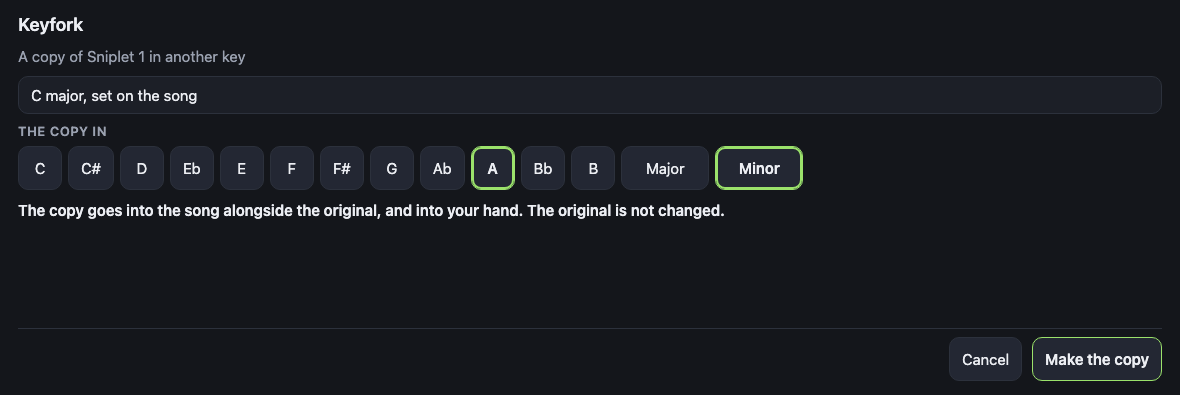
What happens: a copy of the sniplet in the key you chose goes into the song's sniplets, alongside the original, and into your hand, ready to place (11.6). The original isn't changed. The copy's name says what it is, such as "Bass (keyfork, A minor)". Backfork takes the copy away again.
Good to know:
- The key it starts from is shown at the top. It is the key set on the sniplet, its track or the song (section 5), or, when none is set, the key its notes sound like ("Sounds like A minor: heard from its notes"). When no key is set and none can be heard, the keyfork asks which key it is in.
- Notes move by their place in the scale. C major to A minor turns E into C. C major to C minor turns E into E♭ and leaves G as it is. A note outside the scale keeps its distance from the scale note below it where the new key has room, so a note that leads up into the next one still leads up; and two notes never become one.
- Drums don't move. A kit's notes stay where they are. A sniplet of a kit alone has nothing a key moves: the keyfork says so when it opens, and offers only Cancel.
- A pentatonic, blues or chromatic sniplet can only move to another note: it has no third to make major or minor. The keyfork says so.
- A key set by the song or a track is written on the copy, so Roll's key lock follows the copy. A key that was only heard is not written.
See also: 11.6 · 14.5 · section 5
13.6 A sound in another key: the keyfork in Files#
Works now
A recording works too: a loop, a phrase you played, a beat. The keyfork makes a copy of it in another key and keeps it in Files beside the original.
| On | Do this |
|---|---|
| Pop Snipler | In Files, choose one sound, then New → Keyfork this. Press the copy's note, then Make the copy. For a voice that moves with the pitch, press Move (key 37) first |
| iPad / touch | In Files, choose one sound, tap New → Keyfork this. Tap the copy's note, then Make the copy. For a voice that moves with the pitch, tap Move with the pitch first. To hear it first, tap Try it |
| Computer | In Files, choose one sound, click New → Keyfork this. Click the copy's note, then Make the copy. For a voice that moves with the pitch, click Move with the pitch first. To hear it first, click Try it |
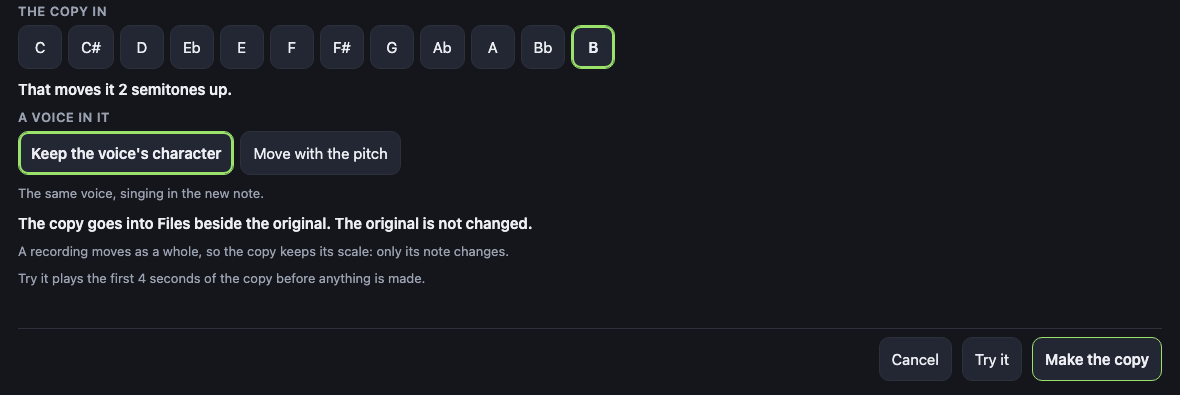
What happens: a copy of the sound in the note you chose is kept in Files, in the same folder as the original, named for its note, such as "Tuesday jam (keyfork, B)", and tagged keyfork. It is a WAV of the same length and rate. The original isn't changed.
Good to know:
- Only the note changes. A recording moves as a whole, so the copy keeps its scale: a minor riff stays minor. To turn major into minor, use a sniplet's keyfork (13.5), which moves the notes themselves.
- The note it starts from is shown at the top, heard from its pitch ("Sounds like A: heard from its pitch"). When no one pitch can be heard, as in a chord or a beat, the keyfork asks which note it is in. While it listens, it says so ("Listening for its note…") with the sound's name, so you know which sound it is on.
- Try it plays the first 4 seconds of the copy as you have chosen it, before anything is made. It plays like any sound you hear from Files: one at a time, with the song a little quieter under it. Press it again, or choose another note, to stop it. Nothing is kept.
- It stays where you left it. Go to another mode and back to Files, and the keyfork is still open on the same sound, with the note you chose. Cancel closes it. (If Free up took the sound away meanwhile, the copy can't be made: bring the sound back first.)
- It moves by the shortest way: up to five semitones up, or six down.
- A voice in it keeps its character: the copy is the same voice, singing in the new note. Choose Move with the pitch for the way a sampler does it, where a voice sounds smaller moved up and bigger moved down; that copy is named "(keyfork, B, moved)", so the two can sit side by side.
- Which is chosen at first depends on the sound. Usually the copy keeps its character: a voice, an instrument, a sung or played melody. For a chord, a beat or a very low note it moves with the pitch, as a sampler's does, because keeping can shift the balance between a chord's notes. Either can be chosen for any sound.
- A doubled voice (two takes of the same part sung together, or a chorus) can come out rougher when its character is kept. If it does, choose Move with the pitch.
- Two voices in harmony, such as a fifth apart, can keep their character at first. One voice's lowest note can then come out much quieter, or louder, than in the original. Choose Move with the pitch if the harmony sounds unbalanced.
- A sound too long for it is marked in Files before you can pick it, with how long a sound it takes at that sound's rate: about 95 seconds at 44.1 kHz (fewer for a sound of more than two channels).
- Stop stops a copy being made. Nothing is kept.
- Everything happens on this device. The sound isn't sent anywhere.
See also: 13.5