14. Roll mode
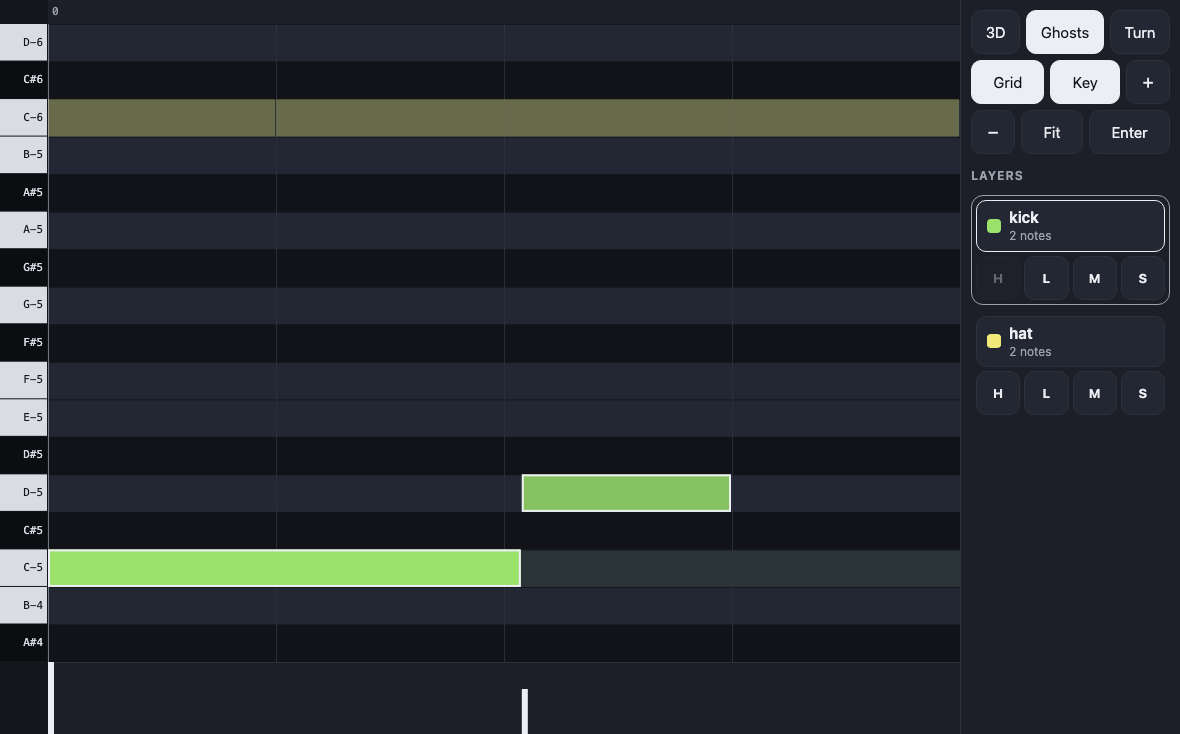
Roll is a full-screen piano roll. Notes are blocks: across is time, up is pitch, and how long a block is is how long the note sounds. Each instrument is a layer, like the layers of a picture editor: one is on screen and takes your edits, and the others can show faintly beneath it. The tracker note view (section 12) shows the same notes as rows of text, and the two always agree, because they edit the same notes.
R is an alt mode of P. Roll edits sniplets that already exist; it doesn't make new ones.
14.1 Open something in Roll#
Coming in 0.4.2
Take the notes of a sniplet into a whole screen of room.
| On | Do this |
|---|---|
| Pop Snipler | Select a sniplet, then hold P and tap the key that shows R |
| iPad / touch | The same on the panel's mode keys |
| Computer | Select a sniplet, then hold F2 and press F1 |
What happens: Roll fills the screen, and the keys strip goes away (on the iPad's panel too). A sniplet, riff or beat opens as itself; select two or more and they open together, in sync, as a loop, each instrument a layer.
Good to know: with nothing selected, Roll says "Nothing is open in Roll. Select a sniplet, then hold P and tap R." Tap P to go back: Roll and P are a pair you can swap between at any time.
See also: 3 (the mode keys and alt modes), 46.4 (every key in Roll).
14.2 Layers#
Coming in 0.4.2
Work on one instrument at a time, with the rest of the music in view when you want it.
| On | Do this |
|---|---|
| iPad / touch | Tap a layer's name in the Layers panel; tap Ghosts to see the others |
| Computer | 1 to 9 for the layer at that place in the panel; G for Ghosts |
What happens: the layer you pick fills the roll, and only its notes take your edits. Ghosts shows every other layer beneath it at 30%, too faint to touch; tap a ghost's block to go to its layer. Each layer keeps what you had selected in it: go to another layer and back, and the same notes are selected again. Each layer has four switches: H hides it from the ghosts, L locks it (it shows, but nothing can change it), M mutes it and S solos it. Muting and soloing are for listening: they don't change the song.
Good to know: a layer is an instrument, so a chord on one synth is one layer, and a beat made of a kick and a hi-hat on two instruments is two.
14.3 Turn the roll#
Coming in 0.4.2
Read the notes across like a piano roll, or down like a tracker.
| On | Do this |
|---|---|
| iPad / touch | Tap Turn |
| Computer | Tab |
What happens: across, time runs to the right and pitch goes up, with the velocity strip under the notes. Turned, time runs down and pitch goes right, with the strip beside them. Each layer remembers which way you last had it.
14.4 Move, stretch and delete notes#
Coming in 0.4.2
Shape the notes directly.
| On | Do this |
|---|---|
| iPad / touch | Touch a block to select it and hear it; drag its middle to move it, either end to stretch it. Drag across an empty part of the roll to select every block it touches |
| Computer | Click and drag the same way; Shift-click adds to the selection, and Option/Alt-drag leaves a copy. Arrows move the selection by a grid step or a semitone, Shift+← and Shift+→ make it shorter or longer, Delete removes it, ⌘/Ctrl+A selects the whole layer |
What happens: while you drag, an outline shows where the notes will land, or turns red where they can't go. The song changes when you let go, as one step you can backfork. Nothing else moves: the notes around them keep their places and their lengths.
Good to know:
- A note that runs on until the next note in its line (a drum hit usually does) keeps doing that: put a note inside it and it stops there, and stretching its end past the next note leaves it ending at that note.
- Where a move can't be made, Roll says why: "That would leave the sniplet.", "No free voice there: every column is sounding.", "This layer already has that note there." or "That layer is locked."
14.5 The grid lock and the key lock#
Coming in 0.4.2
Keep notes on the beat and in the key, or turn either off to place them freely.
| On | Do this |
|---|---|
| iPad / touch | Tap Grid or Key |
| Computer | Option/Alt+G or Option/Alt+K |
What happens: with the grid lock on, a note you move in time lands on the grid. With the key lock on, a note you move in pitch lands on a note of the key, and the notes outside the key are shaded darker. Each lock acts only on what you change: moving a note later never changes its pitch.
Owned by: both start as their owners set them: the sniplet, then its lane, then the song (section 5). The grid is the owning quantise; the key lock is on when the owning key has a scale.
Good to know: the key lock moves drum notes too; turn it off with Key to move a drum layer's notes to any pad.
14.6 Velocity#
Coming in 0.4.2
Make notes louder or quieter, though every key is just on or off.
| On | Do this |
|---|---|
| Pop Snipler | The left top side key is louder and the bottom one quieter, a step at a time; tap the middle one to give the notes back to their owner's velocity |
| iPad / touch | Drag up or down on a note's bar in the strip; drag across several bars to set them all |
| Computer | ] louder, [ quieter, tap \ for the owner's |
What happens: each note has a bar in the velocity strip, as tall as it is loud. A hollow bar is the owner's velocity; a filled one is the note's own. A step is an eighth of the way.
Owned by: a note with no velocity of its own takes its owner's: the sniplet, the instrument, the lane, then the song.
14.7 Zoom#
Coming in 0.4.2
Look closer at part of a sniplet. Roll always fits the screen and never scrolls.
| On | Do this |
|---|---|
| Pop Snipler | Turn knob M |
| iPad / touch | + and −; Fit for the whole sniplet |
| Computer | = and −, 0 to fit; the mouse wheel zooms time where the pointer is, and Shift with the wheel zooms pitch |
What happens: zooming picks a region that then fills the screen; Fit goes back to the whole sniplet.
14.8 Listen as you edit#
Coming in 0.4.2
Hear what you touch, and see where the song is.
| On | Do this |
|---|---|
| iPad / touch | Touch a block, or a key at the left; play the song as usual |
| Computer | The same with the mouse; Space plays and stops |
What happens: a note sounds for as long as you hold it. While the song plays, a line moves across the sniplet where it is being played.
14.9 Enter notes with the keys or pads#
Coming in 0.4.2
Add notes on the screen alone: a small keyboard for an instrument, or 16 pads for drums.
| On | Do this |
|---|---|
| Pop Snipler | Tap Enter in Roll's panel, then tap the keys or pads |
| iPad / touch | The same |
| Computer | Enter with the mouse, then click the keys or pads |
What happens: the keys or pads take the foot of the screen, and the roll moves up. Enter again puts them away. Each one sounds as you touch it and puts a note at the cursor, one grid step long; the cursor then moves on a step. Keys held together make a chord on the same step. Tap the time ruler to put the cursor there.
Good to know:
- A drum kit's layer gets pads (an instrument marked as a kit, a drum synth, or a kit of drum samples); any other gets keys. Keys / Pads switches a layer either way, for as long as the song is open.
- The pads are the notes C-3 to D#4 (the first is the bottom left one, as on most pad controllers), and a pad the layer already plays is outlined. On keys, the arrows beside Step move the octave.
- Notes you enter take their owner's velocity. Make them louder or quieter afterwards in the velocity strip (section 14.6).
14.10 Play notes in while it loops#
Coming in 0.4.2
Record a part by playing it, with the loop going round.
| On | Do this |
|---|---|
| Pop Snipler | With the keys or pads up (Enter), tap Step to switch it to Live, play the song, and play the keys or pads |
| iPad / touch | The same |
| Computer | The same with the mouse |
What happens: each note starts where the playhead was when you touched it and ends where it was when you let go. The station takes off the time your speakers or headphones take to sound (the "key to sound" figure in the top bar), so a note lands with the beat you heard, as on tape (section 17). With the grid lock on, the start lands on the grid and the length is whole steps. While the song is stopped, Live enters notes at the cursor, as Step does.
Good to know: a note is only played in where this sniplet is sounding. Played anywhere else in the song (before it starts, after it ends, or where another sniplet plays), you hear the note but nothing is written, and Roll says "This phrase isn't playing here, so the note wasn't recorded." Where the sniplet is transposed, the note is kept at the sniplet's own pitch; one that would fall outside the notes C-0 to B-9 is not written, and Roll says "That note is out of range at this transpose."
14.11 See every layer in 3D#
Coming in 0.4.2
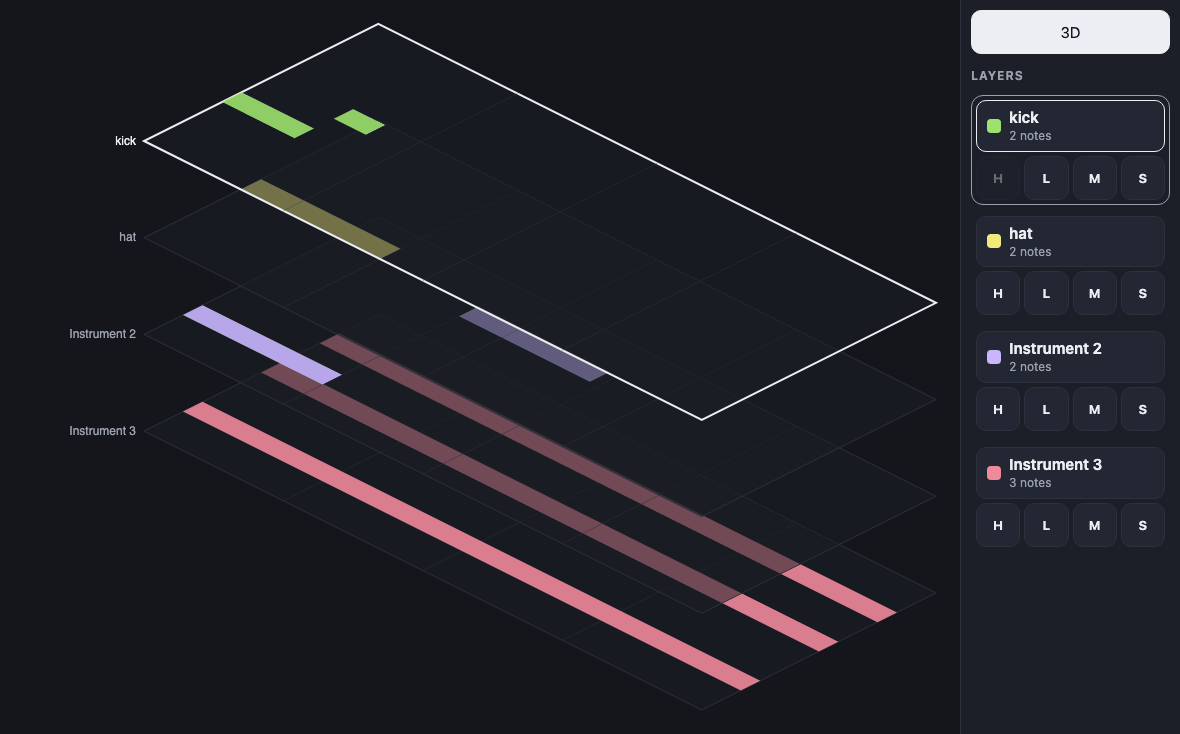
See the whole loop at once: every layer stacked as a plate, playing together.
| On | Do this |
|---|---|
| Pop Snipler | Turn knob M to move the outline from plate to plate; press knob M to open the outlined layer |
| iPad / touch | Tap 3D; tap a plate to open that layer in the flat roll; tap 3D again to come back |
| Computer | I; ↑ and ↓ move the outline, Enter opens the outlined layer, 1 to 9 open the layer at that place; ← and → outline a sniplet nested in it, and Enter opens that |
What happens: each layer the Layers panel shows becomes a plate, the first layer on top, with time running to the lower right and pitch to the upper right. While the song plays, the playhead crosses every plate together and the notes it passes light up. A muted layer's plate is dim, and the layer on screen has an outline. Opening a plate shows that layer in the flat roll with whatever you had selected in it. A sniplet nested inside another floats above its plate as a smaller plate, over the part of the sniplet where it plays (once for each time it loops), and one nested inside that floats higher still; tap one (or outline it and press Enter; on the Pop Snipler, turn knob S, then press knob M) to open it in the flat roll, and Back up (Alt+Backspace) climbs back out.
Good to know: 3D is for looking and listening. To change notes, open a layer or go back to the flat roll, which comes back as you left it.