16. The step grid and parameter locks
The step grid shows one sniplet as steps. Each step is a sixteenth note. Sixteen steps make a page, and a page is a 4 × 4 block: each row of the block is a beat. Three tracks of the sniplet show side by side, so a kick, a snare and a hat sit next to each other, each with its own sixteen steps.
The 48 keys under the screen have the same shape: three blocks of sixteen. The key and the step on the screen above it are the same step.
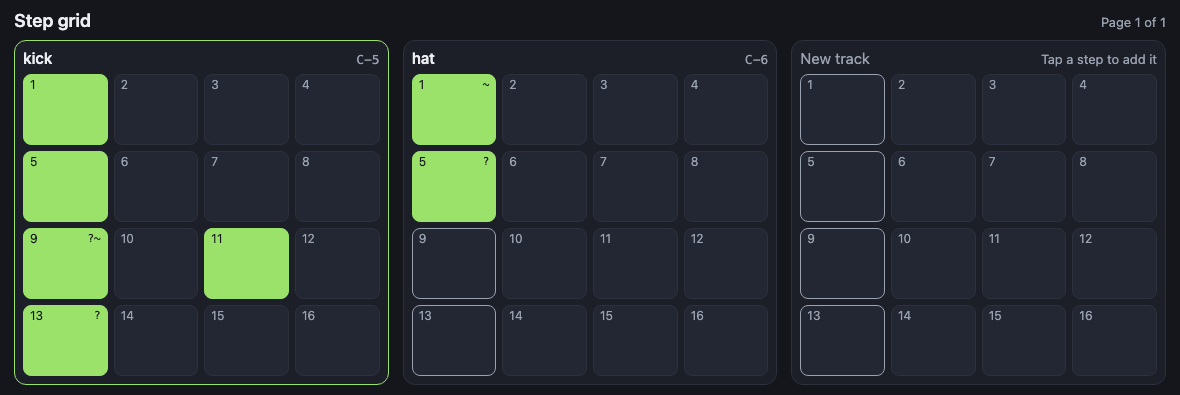
When it's the right one: you want to build a beat or a pattern one step at a time and see the whole bar while you do it.
16.1 Open a sniplet in the step grid#
Coming in 0.4.2
See a sniplet as steps.
| On | Do this |
|---|---|
| Any device | Select the sniplet on the Sniplane. Open the Ways screen (section 19) and pick Step grid |
What happens: your S key shows the step grid from then on, with the sniplet you selected. With nothing selected it shows the sniplet it showed last, or the song's first.
Good to know:
- The step grid, the note view and Roll all edit the same sniplet. A change in one shows in the others.
- To go back to the Sniplane, open the Ways screen and pick Sniplane.
16.2 Turn a step on or off#
Coming in 0.4.2
Put a note on a step, or take it away.
| On | Do this |
|---|---|
| Pop Snipler | Tap the step's key. The left four keys of each row are the first track, the middle four the second, the right four the third |
| iPad / touch | Tap the step |
| Computer | Click the step, or press its key: the 48 keys are laid out as on the Pop Snipler. Or Tab to it and press Enter |
What happens: the step lights. It plays the track's note (16.5), as loud as the side keys say, or at the sniplet's own level when you haven't set one. Tap a lit step and it goes dark: its note is gone, with anything that was set on it. While the song is stopped you hear the note as you place it. While the song plays, the step joins in at once.
Good to know:
- The step that is sounding has a ring around it, so you can see the beat move.
- Hold a step (about 300 ms: its key, or your finger on it) and the grid picks it instead of turning it on or off (16.7).
- A small dot on a dark step means something other than a note is there: an effect, or a note-off from the note view. Tap it and the step gets a note and keeps the rest.
- Every change is one step of your history: Backfork takes it back.
16.3 Move through a long sniplet#
Coming in 0.4.2
See the next sixteen steps of a sniplet that is longer than one page.
| On | Do this |
|---|---|
| Pop Snipler | Turn knob S. Or hold your mode key and press the bottom side keys |
| Computer | Page Up and Page Down |
What happens: the three blocks show the next page, and the top of the screen says which, for example: "Page 2 of 2". A sniplet of 32 steps has two pages.
Good to know:
- When a sniplet ends part-way through a page, the steps past its end are dim. Tap one and the station says: "This sniplet ends before that step."
- While a step is picked (16.7), knob S,
Page UpandPage Downedit that step instead:Page UpandPage Downchange its chance. Let go of the step, or tap Close, to page through the sniplet again. Your mode key held with the bottom side keys always pages.
16.4 Choose the tracks, and add one#
Coming in 0.4.2
Show other tracks of the sniplet, or start a new one.
| On | Do this |
|---|---|
| Pop Snipler | Turn knob M to move along the tracks. To add a track, tap any step in the block marked New track |
| iPad / touch | Tap a step in the block marked New track |
| Computer | Option/Alt+[ and Option/Alt+] move along the tracks; click a step in the New track block to add one |
What happens: the blocks move along by one track. The block after the sniplet's last track is the place for a new one: it says "New track" and "Tap a step to add it". Your first step there makes the track and the step together.
Owned by: the lane. A sniplet has room for as many tracks as its lane is wide.
Good to know:
- When there is no room, the station says so, for example: "This sniplet has room for 2 tracks."
- A new track made while the song plays is heard from the next time you start the song.
16.5 Choose the note new steps get#
Coming in 0.4.2
Set the pitch (or, on a drum kit, the drum) that new steps in a track play.
| On | Do this |
|---|---|
| Pop Snipler | Hold any step of the track for a moment and let go: that track is chosen, and nothing changes. Then turn knob L: one click is one semitone |
| Computer | Hold one of the track's step keys for a moment and let go, then Option/Alt+↑ and Option/Alt+↓ |
What happens: the note beside the track's name changes, and you hear it while the song is stopped. Steps you turn on from now on play that note. Steps that are already on keep theirs.
Good to know:
- A track starts with the note of its first step. An empty track starts on C-5.
- Let go of the step before you turn knob L: while a step is held, knob L is that step's timing (16.7).
- Tapping a step chooses its track too, but it also turns the step on or off.
16.6 Play and stop from the step grid#
Coming in 0.4.2
Start and stop the song without leaving the grid.
| On | Do this |
|---|---|
| Pop Snipler | Hold your mode key and press the space key |
| iPad / touch | Tap Play in the top bar |
| Computer | Hold F3 (or Option/Alt+3) and press Space; or click Play |
What happens: the song plays, or stops.
Good to know: in the step grid every one of the 48 keys is a step, the two halves of the space key included (they are steps 14 and 15 of the middle block). So here the space key alone places a step. Your mode key held with the space key plays and stops in every view.
See also: section 46.9 for every key
16.7 Shape a step: velocity, chance, timing and repeat#
Coming in 0.4.2
Make one step louder or softer, play only some of the time, land a little early or late, or repeat inside itself.
| On | Do this |
|---|---|
| Pop Snipler | Hold the step's key and turn a knob: S velocity, M chance, L timing, H repeat. Click a knob to put its setting back. Let go of the key when you're done |
| iPad / touch | Touch and hold the step until the strip under the blocks shows it, then tap − and +. × puts a setting back. Tap Close when you're done |
| Computer | Hold the step's key, then ↑ ↓ for velocity, Page Up Page Down for chance, ← → for timing, Home End for repeat. Or Tab to the step and press Shift+Enter to pick it, then use the strip |
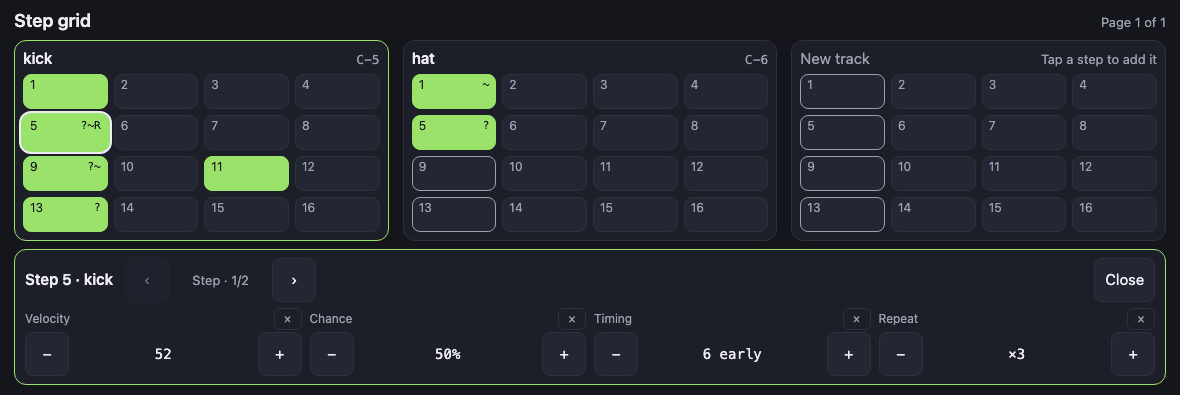
What happens: while a step is picked, the strip under the blocks and the knobs' labels show its four settings, and each change is heard the next time the step plays, live while the song plays.
| Setting | What it does | Shown as |
|---|---|---|
| Velocity | How hard the step plays, 0 to 64. Until you set one it plays at the sniplet's own level | "40 (its own)", then "43" |
| Chance | Whether the step plays this time: a percentage, "1 of 2" (the first of every two times through), fill or not fill, first time or not | "Always", "50%", "1 of 2", "Fill", "First" |
| Timing | A nudge off the grid, up to about half a step early or late (47 parts of the 96 in a step) | "On time", "6 early", "12 late" |
| Repeat | The step plays 2 to 8 times inside itself, evenly | "Once", "×3" |
Good to know:
- The step shows a small mark for each setting it has:
?chance,~timing,Rrepeat (Lwill be a lock). - Only a step that is on has these. Pick a step that is off and the station says: "Turn the step on first."
- A run of turns of one knob is one step of your history: Backfork takes the whole run back.
- While a step is picked, knob S is its velocity, not the page. Let go of the key, or tap Close, to page again.
- Chance is the same every time a song plays from the start: it comes from the song's own seed, so a song plays the same way on every Pop Snip.
16.8 Lock a sound on one step: parameter locks#
Coming in 0.4.2
Change how one step sounds, and only that step: a louder hit, a hat panned left, a brighter note, while the steps around it stay as they were.
| On | Do this |
|---|---|
| Pop Snipler | Hold the step's key and press the right bottom side key: the knobs move from the step's own settings to the track's (volume, pan), then on to the synth's. Turn a knob to lock that setting on the step; click it to take the lock off. The left bottom side key goes back |
| iPad / touch | Touch and hold the step, then tap › in the strip to page on. Tap − and + to lock a setting, × to take the lock off |
| Computer | Hold the step's key and press Tab (Shift+Tab goes back). The same keys as 16.7 then turn the page's settings: ↑ ↓ the first, Page Up Page Down the second, ← → the third, Home End the fourth |
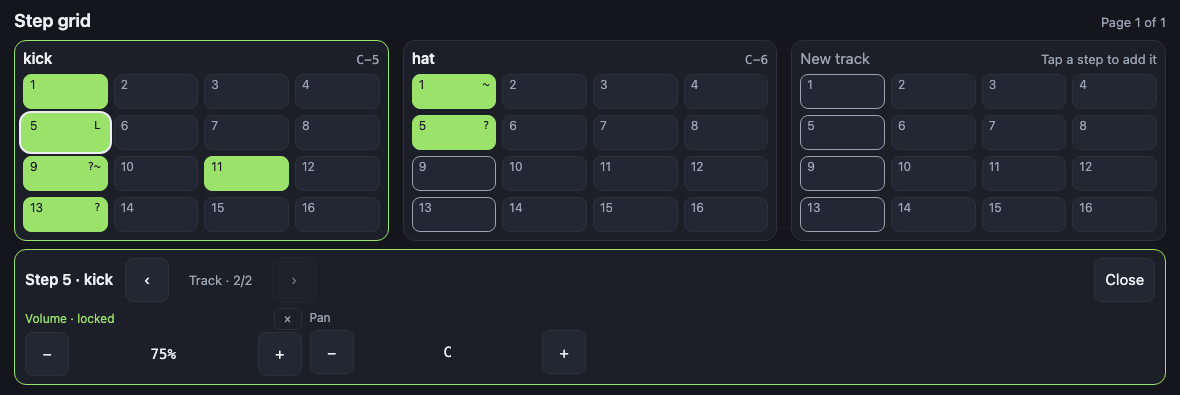
What happens: the strip's top line names the page, for example "Track · 2/12". The first turn of a setting locks it on the step, starting from what the track or the synth has now; the setting's name then says "locked", and the step shows L. The step plays with that value every time, live while the song plays; every other step plays as the track and the synth say.
| Page | What it has |
|---|---|
| Step | The step's own settings (16.7) |
| Track | The track's volume and pan, for this step. Only for a sniplet on a lane: a track is a lane's |
| The synth's | Its settings, four a page, in the groups the instrument editor (section 20) has: "Common 1/2", "Op 1 1/2" and so on. Only when the track plays one of Pop Snip's own synths |
Good to know:
- Up to 64 locks on one step. A 65th is refused: "This step has 64 locks already."
- A lock's value is changed where it is, which costs nothing. Taking a lock off (a knob's click) and then turning the knob again puts a new one on, and each of those uses a little of the engine's room for locks until the song is next loaded. If that room ever runs out, the change waits for the next time you stop the song, and stopping gives all the room back.
- While a step is picked, the two bottom side keys page, so they don't do their own jobs: the left one doesn't make notes quieter (1.3) and the right one doesn't bend down (1.5). Let go of the step, or tap Close, and they're back. The other side keys keep their jobs.
- The page you were on is kept when you pick another step, so you can lock the same setting on step after step.
- Turn the step off and its locks go with it.