17. Tape: four tracks
Tape shows the song as four tracks of tape, one above the other, the way a four-track recorder does. Each track is one of the song's first four tracks, and what is on it shows as blocks along the tape. You pick a track, press Record, play the song, and play notes on the keys: what you play goes onto that track.
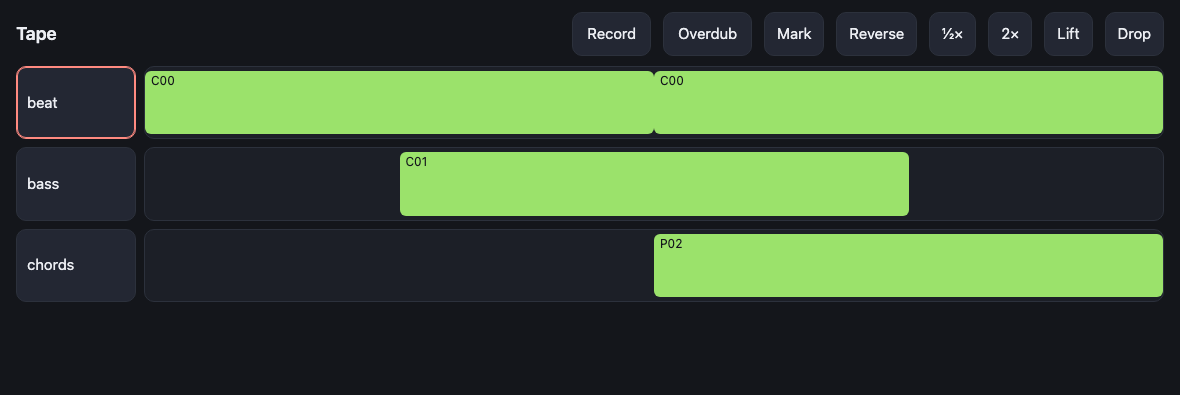
When it's the right one: you want to play a part in, in time with the song, rather than place it note by note.
17.1 Open tape#
Coming in 0.4.2
See the song as four tracks of tape.
| On | Do this |
|---|---|
| Any device | Open the Ways screen (section 19) and pick Tape |
What happens: your S key shows tape from then on: up to four tracks, each with its name, and the first one armed. The line across the tape is where the song is while it plays.
Good to know:
- A song with fewer than four tracks shows fewer. A track with nothing on it says "Empty".
- To go back to the Sniplane, open the Ways screen and pick Sniplane.
17.2 Arm a track#
Coming in 0.4.2
Choose the track your playing goes onto.
| On | Do this |
|---|---|
| Pop Snipler | Tap one of the first four keys of the top row: track 1 to 4 |
| iPad / touch | Tap the track's name |
| Computer | Option/Alt+1 to Option/Alt+4 |
What happens: the track's name lights. The notes you play are heard on that track's instrument.
Good to know:
- Arming another track while you record ends the pass on the first one (17.3) and goes on recording on the new one.
17.3 Record a take#
Coming in 0.4.2
Play a part onto the armed track, in place of what was there.
| On | Do this |
|---|---|
| Pop Snipler | Tap the fifth key of the top row (Record), play the song with the space key, and play notes (17.5). Tap Record again to stop recording |
| iPad / touch | Tap Record |
| Computer | Option/Alt+R |
What happens: the top of the screen says "Recording on track 1". The notes you play show as dots on the armed track while you play; nothing is in the song yet. When the song stops, what you played goes in as a take: a new sniplet called "Take 1" (then "Take 2", and so on), and the station says "Take on track 1."
Good to know:
- Tapping Record again while the song plays ends the take there, and it waits: the top of the screen says "1 going in when the song stops", and the dots stay. The song you hear doesn't change until it stops, so the music never skips while you record.
- Only the stretch you played over is replaced: from where you started recording (or your first note) to where you stopped. The rest of those bars stays as it was. A note that was still sounding where you came in is cut there.
- The take covers whole bars around what you played. A sniplet that runs on past the take keeps going after it, so nothing outside what you played is lost.
- A take longer than 256 rows (16 bars of 4/4) goes in as several sniplets, one after another.
- Record stays on after a take, so the next time you play the song you record again. Tap Record to turn it off.
- Takes that go in while another screen is showing (the song stopped there) are outlined when you come back to tape, and the top of the screen says "The new take is marked". The outline goes with the next thing you do on tape.
- With the song stopped, Record turns on and the station says "Play the song to record onto tape."
- A key you are still holding when the take ends stops sounding, and its note ends there.
- Everything that goes in when the song stops is one step of your history: Backfork takes it all back.
- Tape keeps the song tidy: a sniplet tape made ("Take", "Reverse", "Slow", "Fast", "Drop", "Cut") that nothing plays any more once a newer take or edit replaces it goes from the song in that same step. Backfork brings it back. A sniplet you made yourself, and whatever is in your hand, is never taken away.
17.4 Overdub#
Coming in 0.4.2
Play more onto the armed track and keep what is there.
| On | Do this |
|---|---|
| Pop Snipler | Tap the sixth key of the top row (Overdub), then play as for a take (17.3) |
| iPad / touch | Tap Overdub |
| Computer | Option/Alt+D |
What happens: as for a take (17.3), but what was on the track over those bars stays, and your notes go in beside it. The take is a new sniplet with both.
Good to know:
- A track plays as many notes at once as it is wide. A new note goes where nothing is sounding, so it doesn't cut a note that was there. When something is sounding in every place, the new note cuts one of them; when every place already has a note on that row, the note is left out and the station says how many, for example: "3 notes had no free column and were left out."
17.5 Play notes onto tape#
Coming in 0.4.2
Play notes on the keys, heard on the armed track's instrument.
| On | Do this |
|---|---|
| Pop Snipler | The third row of keys is one octave, from C on the left; the second row is the octave above. The side keys set how hard |
| Computer | The bottom letter row (Z, S, X, D, C …) and the top letter row (Q, 2, W, 3, E …), as in a tracker |
What happens: you hear the note while you hold the key, whether the song plays or not. While recording, the note goes onto tape where you heard it, to the 96th of a row, and ends where you let go. The station takes off the time your speakers or headphones take to sound (the "key to sound" figure in the top bar), so the note lands with the beat you heard.
Good to know:
- The keys start at octave 4 (C-4 is the third row's first key). The fourth and fifth keys of the bottom row move it down and up an octave; on a computer,
Option/Alt+↓andOption/Alt+↑.
17.6 Play from the start#
Coming in 0.4.2
Start the song from its first row.
| On | Do this |
|---|---|
| Pop Snipler | Tap the first key of the bottom row. The space key plays and stops from where the song is |
| Computer | Home. Space plays and stops |
What happens: the song plays from its first row, wherever it was.
17.7 Mark a stretch#
Coming in 0.4.2
Choose the bars the tape edits (17.8, 17.9) work on.
| On | Do this |
|---|---|
| Pop Snipler | Tap the seventh key of the top row (Mark) at the stretch's first bar, then again at its last |
| iPad / touch | Tap Mark, move the song to the last bar, and tap Mark again |
| Computer | Option/Alt+M, twice |
What happens: the first Mark marks the bar the song is at, with a dashed line around it on the armed track, and the top of the screen says, for example, "Bar 2 on: Mark again where it ends". The second Mark takes the stretch to the end of the bar the song is at then: "Bars 2–3 marked".
Good to know:
- The song can be playing or stopped. Stopped, it is the bar where the song last was.
- Marking a bar before the first one works too: the stretch runs from the earlier bar.
- The edits work on the armed track (17.2). Arm another track to edit that one over the same bars.
17.8 Reverse#
Coming in 0.4.2
Play the marked stretch's notes backwards.
| On | Do this |
|---|---|
| Pop Snipler | Tap the eighth key of the top row (Reverse) |
| iPad / touch | Tap Reverse |
| Computer | Option/Alt+V |
What happens: the notes of the marked stretch on the armed track play in the opposite order: the last note comes first. Each keeps its pitch and its length, and its timing within the row. Effects and volumes set on their own rows move with the reversal too. The stretch becomes a new sniplet, "Reverse 1". Nothing before or after the stretch changes: a note that sounded on past its end still does.
Good to know:
- Reverse twice and the stretch is exactly as it was.
- A note that was already sounding when the stretch began is cut where its reversed place ends.
- A cut on the stretch's first row marks where it begins: it stays there, and the rest is reversed after it.
- An effect or volume that lands on the same row as a reversed note joins that note, when the note has room for it (a row holds up to three effects and one volume). When it has none, the effect is left out, and the station says how many, for example: "1 effect had no room on its row and was left out."
- An effect that joined a note this way stays with that note from then on: reverse again and it comes back with the note, on the note's row, not on the row it had before.
- With nothing marked, the station says "Mark a stretch first: Mark at its first bar, then at its last."
- It's one step of your history: Backfork takes it back.
17.9 Half and double speed#
Coming in 0.4.2
Slow the marked stretch down or speed it up, the way a tape machine does.
| On | Do this |
|---|---|
| Pop Snipler | Half speed: the ninth key of the top row (½×). Double speed: the tenth (2×) |
| iPad / touch | Tap ½× or 2× |
| Computer | Half speed Option/Alt+,. Double speed Option/Alt+. |
What happens: at half speed the stretch lasts twice as long and every note is an octave lower; it runs on into the bars after it, as slowed-down tape does. At double speed it lasts half as long and every note is an octave higher; the rest of the stretch is silent. The result is a new sniplet ("Slow 1" or "Fast 1"), and the mark follows it.
Good to know:
- Half speed never covers notes: when the bars after the mark have notes on the armed track, nothing changes and the station says how many empty bars it needs, for example: "½× needs 2 empty bars after the mark; there are notes there."
- A note that would go above the highest note or below the lowest is left out, and the station says how many.
- Tape edits wait while you record: "Stop recording first." With takes waiting to go in, "Stop the song first, so the takes waiting go in."
17.10 Lift a stretch into your hand#
Coming in 0.4.2
Cut the marked stretch out of the track and hold on to it, to put it down somewhere else.
| On | Do this |
|---|---|
| Pop Snipler | Tap the eleventh key of the top row (Lift) |
| iPad / touch | Tap Lift |
| Computer | Option/Alt+X |
What happens: the notes of the marked stretch on the armed track go into your hand as a new sniplet, "Lift 1", and the stretch is left silent. The station says "In your hand: drop it at the playhead, here or on the Sniplane."
Good to know:
- Your hand is the station's, not tape's: what you lift here, the Sniplane can place (11.7), and a sniplet taken in hand on the Sniplane (11.6) is what Drop puts down here.
- A stretch with no notes has nothing to lift, and nothing is made.
- Lift again without dropping and the new stretch takes the place of the first in your hand; the first, never put down, goes from the song.
- Backfork takes a lift back: the notes are back on the track, and your hand is empty again.
17.11 Drop what is in your hand#
Coming in 0.4.2
Put down what you are holding at the playhead on the armed track.
| On | Do this |
|---|---|
| Pop Snipler | Tap the twelfth key of the top row (Drop) |
| iPad / touch | Tap Drop |
| Computer | Option/Alt+P |
What happens: what is in your hand plays from the start of the bar the song is at, on the armed track, in place of what was there for its length, as a recording would be. It goes in as a new sniplet, "Drop 1", and stays in your hand, so you can drop it again somewhere else.
Good to know:
- With nothing in your hand, the station says "Nothing in hand: Lift a stretch first."
- A sniplet wider than the armed track keeps the notes that fit, and the station says how many were left out.