18. The band's way
The band's way shows your band's musicians side by side, one lane each, and the song's scenes under them: rows of parts, one for each musician. Tap a part and that musician plays it from the next beat. Tap a scene's name and the whole band changes to it together.
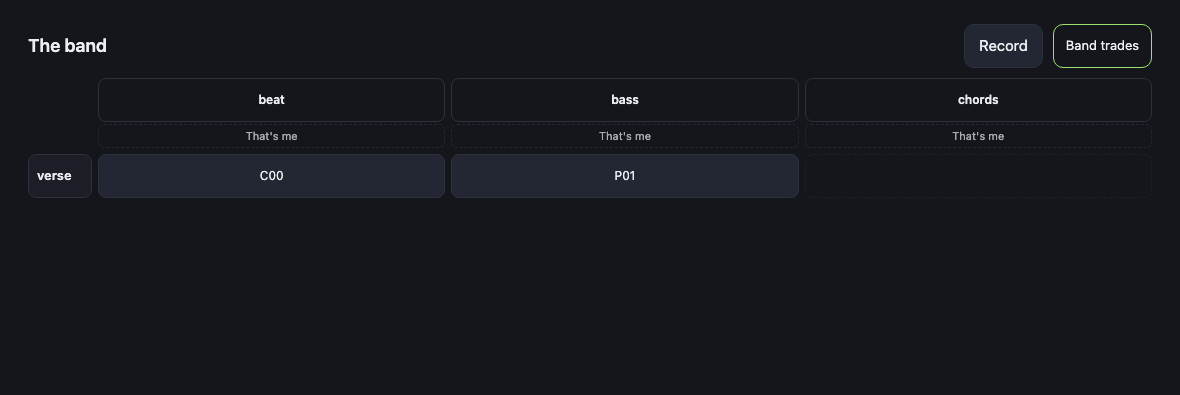
When it's the right one: you want to play the song live, part by part, the way a band changes sections on stage.
18.1 Open the band's way#
Coming in 0.4.2
See the song as the band playing it.
| On | Do this |
|---|---|
| Any device | Open the Ways screen (section 19) and pick The band |
What happens: your S key shows the band's way from then on. A song your band made shows its musicians by name, in the order of their channels. A song with no band shows its tracks as lanes, with the same view. Three scenes show at a time.
Good to know:
- A musician whose part has no lane in this song is shown, and the station says "That musician has no lane in this song." if you tap their part.
- A song with no scenes yet says so.
18.2 Launch a musician's part#
Coming in 0.4.2
Have one musician change to their part in a scene.
| On | Do this |
|---|---|
| Pop Snipler | Tap its key. The keys are three blocks of 4 × 4, a block a scene (left to right, as on the screen) and a key a musician (the first four across the top row, and on down) |
| iPad / touch | Tap the part |
| Computer | Its key: the 48 keys are laid out as on the Pop Snipler. Or click the part |
What happens: the part starts on the next beat its sniplet waits for (as a launch on the Sniplane does, section 2), and lights while it plays. Tap the part that is playing and it stops.
Good to know:
- The song has to be playing: with it stopped, the station says "Start the song first." Play and stop with your mode key held and the space key, or Play in the top bar: here the space key is a part, as on the step grid.
- A slot with nothing in it is dim, and does nothing.
- Hold a part and it shows as held; let go and nothing changes. Tap another musician while you hold it, and it goes to them (section 18.7).
- A part added to the song while it plays (an undo, say, brought it back) isn't in the song as it plays yet: the station says "That plays from the next start: it isn't in the song as it plays yet." Stop and play, and it's there.
18.3 Launch a whole scene#
Coming in 0.4.2
Change the whole band to a scene at once.
| On | Do this |
|---|---|
| iPad / touch / computer | Tap the scene's name, at the start of its row |
What happens: every musician with a part in that scene starts it on its next beat. Parts already playing that scene go on.
18.4 Stop a musician#
Coming in 0.4.2
Let one musician drop out.
| On | Do this |
|---|---|
| iPad / touch / computer | Tap the musician's name at the top of their lane |
What happens: that lane stops on its next beat.
18.5 Move through the scenes#
Coming in 0.4.2
See the next scenes of a song with more than three.
| On | Do this |
|---|---|
| Pop Snipler | Turn knob S. Or hold your mode key and press the bottom side keys |
| Computer | Page Up and Page Down |
What happens: the scenes move by one, and the top of the screen says which, for example: "Scenes 1–3 of 4".
18.6 Record what you play#
Coming in 0.4.2
Keep a performance in the song.
| On | Do this |
|---|---|
| iPad / touch | Tap Record |
| Computer | Option/Alt+R |
What happens: while Record is on, every part you launch and every stop is written into the lanes where it landed, so the song plays it back that way. Each one is a step of your history: Backfork takes it back.
18.7 Give or take a part#
Coming in 0.4.2
Give a musician's part to another, or take it for your own lane, for this song.
| On | Do this |
|---|---|
| Pop Snipler | Hold the part's key, and tap one of the other musician's keys |
| iPad / touch | Hold the part, and tap another musician's part or name. Or press and hold it until it shows as held, let go, then tap |
| Computer | Hold its key and press another musician's. Or press and hold it with the pointer, let go, then click; or Shift+Enter on it, then another |
What happens: the part goes to that musician, in the part's own scene, and plays in their lane straight away if the song is playing. Onto the lane you marked as yours (section 18.8) it's a steal: it leaves the other musician's lane, which stops if it was playing it. Anything else is a gift: a copy, and the giver keeps theirs. The station says which, for example "Drum Dee gave Beat to Bass Bo."
Good to know:
- It's for this song only. The band's own riff book on your Boll doesn't change.
- Each move is a step of your history. Undo puts the parts back where they were. What's playing isn't touched: the moved part keeps sounding until you stop it, and a lane a steal stopped stays stopped.
- If you tap a key in another scene, the move is still in the held part's scene, and the station names it.
- To let go of a held part without moving it: let go of its key, tap it again, press
Escape, use the side key's No, or leave the band's way. - Two musicians who play the same track can't trade: the station says "Those two play the same track: there is nothing to move."
18.8 Mark your own lane#
Coming in 0.4.2
Tell the station which musician is you, for this song.
| On | Do this |
|---|---|
| iPad / touch / computer | Tap That's me under the musician's name. Tap it again to take it off |
What happens: that lane shows as yours, and parts moved onto it are steals (section 18.7). One lane at a time, and the station remembers it for each song. With no lane marked, every move is a gift.
Good to know: each musician's name shows their temperament when you hover or long-press it. Until the band's own temperaments come to the station, it's a stand-in drawn from the song, and says so.
18.9 Let the band trade while you play#
Coming in 0.4.2
Your band swaps parts among itself now and then, in character, while the song plays.
| On | Do this |
|---|---|
| iPad / touch / computer | Tap Band trades at the top, to turn it off or on again |
What happens: while the song plays and the band's way is on screen, at most once every 8 bars, one musician may give a part, take one, or swap, by their temperament: a generous one gives, a greedy one takes, a trickster swaps their weakest part for a better one. It happens in the scene the band is playing. A short line with an arrow under the musicians' names shows who went where for a few seconds, and the station says it, for example "Drum Dee gave Beat to Bass Bo." It's on at first, and the station remembers if you turn it off.
Good to know:
- The same song played the same way makes the same moves: they come from the song itself, not from chance.
- The band never takes from, or swaps with, the lane you marked as yours (section 18.8). It may give you a part where yours is empty.
- A band gift only goes to a musician with nothing in that scene: the band never plays over a part.
- Each move is a step of your history, and with Record on it's written into the lanes like your own launches.
- Nothing happens in the first 8 bars, while another view is on screen, or with the song stopped.
- The band never moves while you're in the middle of something: if you're holding a part, or any key is down, when an 8-bar line comes, that line passes with no move.
- The band waits while you have something to redo, so its move never pushes your redo aside.
- One move per line each time through: if the song loops or you go back, the band doesn't trade again on a line it already traded on. Stop and play again, and it starts fresh.
18.10 Play your band's own riffs#
Coming in 0.4.2
Play the riffs your band's musicians keep, as well as the song's scenes.
| On | Do this |
|---|---|
| Any device | Page past the scenes (section 18.5): the rows after them are Riffs 1, Riffs 2 and on, each musician's riffs, their best first. Tap one as you would a part |
What happens: the first time you play a riff, the station copies it into the song as one of its own phrases, and says so, for example "Walk is in the song now." From then on it's part of the song, plays from the next start when you added it while the song was playing, and is saved with the song. It never copies the same riff twice.
Good to know:
- The riffs come from the band's Pop Boll: the song's own when it says which, else yours. They're fetched once per song, and the band's way works without them, offline too. If they couldn't be fetched (offline), the station tries again now and then as you use the band's way.
- Only the Boll's owner (and, on a public Boll, people paired with it) can play the riffs here. Anyone else sees their names, dimmed, and the station says "You can see this riff's name here, not play it: its notes are for the band's owner."
- With the riffs, each musician's name shows their own temperament, and the band trades by it (section 18.9).
- Riffs are played, not given or taken: holding one does nothing. To trade a riff, put it in a scene first.